
This guide covers recommended audio, video, and lighting hardware for churches. It is designed to provide a starting point for common purchasing decisions.
Important Note on Purchasing: Please contact us before purchasing to ensure you select the best option for your specific use case and to ensure you get the best prices. We offer an excellent non-profit discount with bhphotovideo.com, typically ranging from 15% to 20%, sometimes more off MSRP.
Sound Boards
Stage Boxes
Microphones
Speakers
Video Switcher
Cameras
Tripods
Lighting Equipment
Graphics Computer - ProPresenter and Live Stream
Monitor
Projectors - Best for larger than 100-inch screens or for large spaces
TVs - Best for everything if a 100-inch works
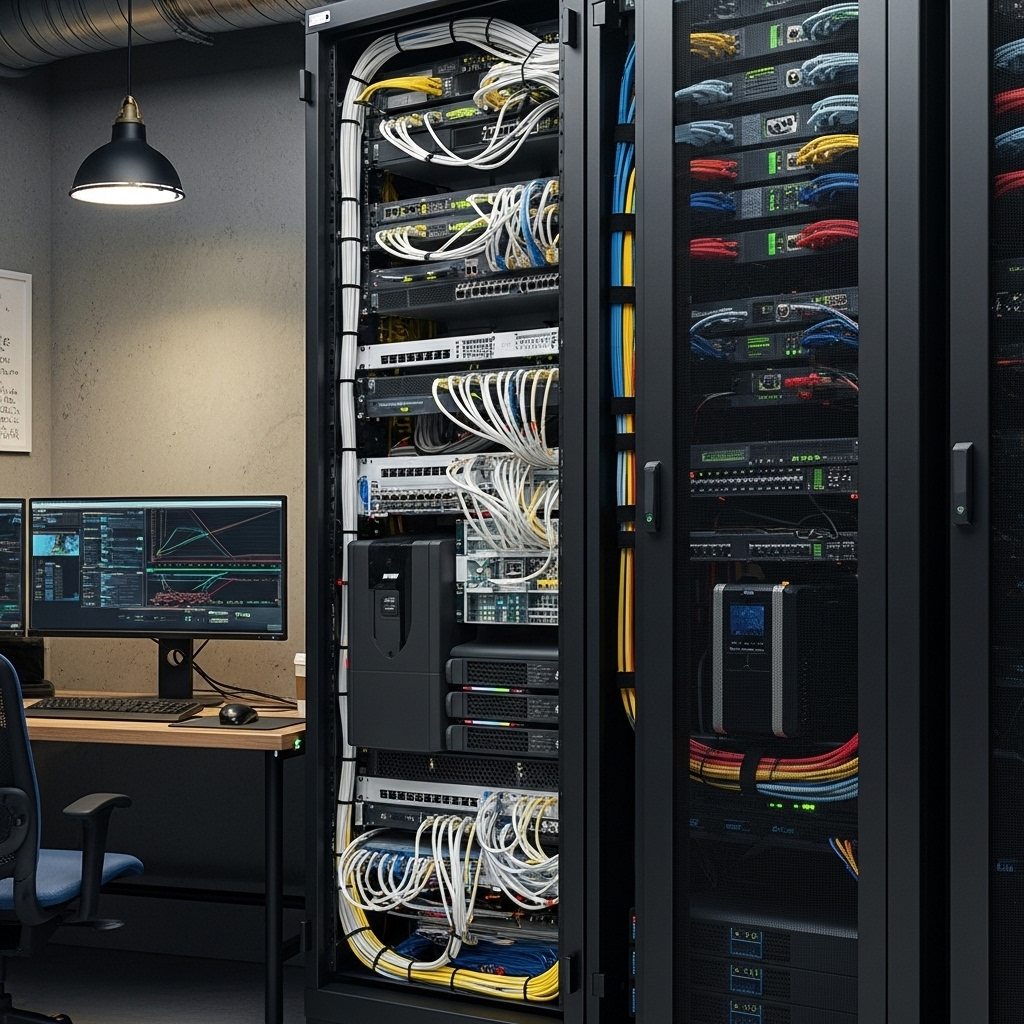
A solid network is the backbone of your ministry's digital operations, from livestreaming to administration.
Important Note on Purchasing: Please contact us before buying any network equipment. We can help you design the right solution for your church's specific needs and ensure you receive the best possible pricing on professional-grade networking hardware.
Internet Connection – Your main link to the outside world for streaming, online giving, emails, etc. If it's slow or unreliable, your live stream or online systems will struggle.
Router / Firewall – The "traffic cop" of your network. It controls what comes in or goes out and keeps things safe, protecting your network from hackers or unwanted traffic.
Switch – A "power strip for network cables" that connects many wired devices together. Helps organize all your wired gear (computers, cameras, TVs).
Wi-Fi / Access Points – The devices that create your wireless network, allowing phones, laptops, tablets, and smart TVs to connect.
Guest Network – A separate Wi-Fi for visitors and attendees. Keeps your internal systems (office computers, giving, etc.) safe from guest devices.
Backup Power (UPS) – A battery that keeps key devices running briefly during power loss, preventing your livestream or router from crashing during short outages.
Network Security – The locks and alarms for your digital systems. Protects personal data, finances, and livestreams from being hacked.
VLAN or Segmentation – Splitting your network into sections (like "office," "AV," "guest"). Keeps systems separate so one problem doesn't affect everything.
For smaller buildings or simpler needs, a single powerful router may be enough:
When a Larger Stack is Better:
When an All-in-One is Probably Enough:
Performance & Capacity
Full Stack: Can handle many devices, many access points, heavy usage (video, streaming, many WiFi clients). Switching can be optimized; PoE switches power APs/cameras without extra power runs. Upgrades are modular.
All-in-One: Often quite powerful for light to moderate needs. Less hardware to worry about; everything in one box simplifies cabling and power. Usually enough for a smaller church or simpler facility.
Scalability / Future Growth
Full Stack: Very good. If you need more coverage / more wired connections / multiple buildings, you can expand piece by piece. Better segmentation and control (guest networks, AV vs office vs admin vs security).
All-in-One: More limited. Once you hit the capacity of the all-in-one device (number of LAN ports, WiFi coverage, CPU for routing & firewall), you'll need to invest in more gear or upgrade. Mesh or extra APs can help, but at some point you may hit performance ceilings.
Management & Control
Full Stack: More granular control: VLANs, firewall rules, traffic monitoring, bandwidth prioritization, etc. With stacks like Unifi or Omada, you have dashboards, alerts, firmware/version control. More options for redundancy (dual WAN, backup links).
All-in-One: Simpler management, often fewer knobs to tweak. Easier to set up initially. Less maintenance in terms of multiple devices, but less fine control. Some advanced features may be missing or more limited.
Cost
Full Stack: Investment can be spread over time (buy router first, then switches, then APs). In large setup, cost per device tends to drop as you scale (PoE switches, etc.).
All-in-One: Lower upfront cost vs full stack for small needs. Fewer devices, fewer cables, less labor to set up. But if you outgrow it, the upgrade path might require replacing the whole unit or adding more gear.
Reliability / Failure Isolation
Full Stack: If one piece fails (e.g. an AP, a switch), only that part is affected. You can often isolate failures. Redundancy (UPS, backup WAN) is easier with separate parts.
All-in-One: More single points of failure: if the all-in-one router fails, you lose many functions (routing + WiFi + firewall + management). Less redundancy built in. Performance can degrade significantly if things become bottlenecks.
Complexity / Learning Curve
Full Stack: Higher complexity: setting up VLANs, PoE, ensuring compatibility between devices, managing firmware. Requires more time and technical comfort. More devices to maintain, configure, possibly more cable runs.
All-in-One: Simpler to get up and running: fewer devices, less cabling, fewer components to manage. Easier for non-tech volunteers or staff to understand and maintain. Less that can go wrong in terms of configuration.
Flexibility
Full Stack: Lots of flexibility: you can choose which devices, what brands, mix and match where needed. You can locate access points strategically, use different types of APs, use different switches, etc. Better for customizing to layout.
All-in-One: Less flexible: you're bound largely by what the all-in-one supports. If you need unusual features (lots of separate networks, special AV traffic, many wired devices), you may find limitations. Upgrading often means replacing or adding external gear which might defeat the "all-in-one simplicity."
This guide covers recommended software for handling everything from Sunday morning presentations to daily administrative tasks.
Important Note on Purchasing: Before purchasing any paid software, please contact us. We often have access to non-profit discounts, educational pricing, or existing licenses that can significantly reduce your costs and ensure you get the best value.
Free Adobe Alternative: Canva Pro (completely free for registered non-profits) and the Affinity Suite provide a powerful alternative to Adobe Photoshop, Illustrator, and InDesign for professional graphic design and publishing.
Free Pro Video Editor: DaVinci Resolve's free version is a Hollywood-grade editor—the best free option for sermons, announcements, and promotional videos. More powerful than many expensive alternatives.
Office Suite
Recommended: Google Workspace, Microsoft 365, LibreOffice
Use: Word processing, spreadsheets, slides, bulletins, reports
Why It's Useful: Core productivity tools for creating and sharing documents, reports, and presentations. Cloud-based options make collaboration simple, while offline tools keep access reliable.
Presentations & Worship Display
Recommended: ProPresenter
Use: Slides for worship lyrics, sermon points, or announcements
Why It's Useful: Ideal for Sunday services and visual presentations with integrated media and scripture support. Industry standard for churches.
Note Taking / Idea Organization
Recommended: Evernote, Google Keep, OneNote
Use: Sermon prep, planning notes, meeting minutes
Why It's Useful: Helps organize sermon outlines, meeting notes, and planning documents in one accessible location. Great for keeping a running record of church projects, creative ideas, and long-term ministry goals.
Team Communication
Recommended: Microsoft Teams, Slack
Use: Keep pastors, staff, and ministry leads in touch
Why It's Useful: Provides chat, file sharing, and video meetings in one place for effective communication. Both offer generous free plans suitable for most church teams.
Video Conferencing
Recommended: Zoom, Google Meet
Use: Virtual meetings, small groups, remote volunteers
Why It's Useful: Reliable and easy-to-use for remote meetings, online Bible studies, or team check-ins. Excellent free versions available with non-profit discounts for paid plans.
File Sharing & Cloud Storage
Recommended: Google Drive, Microsoft OneDrive, Dropbox Basic
Use: Store and share documents, graphics, and files among staff
Why It's Useful: Keeps shared files organized and accessible for staff and volunteers from any device. Free storage included with non-profit plans from Google and Microsoft.
Graphic Design & Communication
Recommended: Canva, Adobe Express
Use: Flyers, sermon series graphics, announcements, social media
Why It's Useful: Easy-to-use design tools for creating professional visuals for bulletins, screens, and social media. Canva Pro is completely free for most registered non-profits.
Video & Streaming Tools
Recommended: OBS Studio, DaVinci Resolve
Use: Record or livestream services or announcements
Why It's Useful: Powerful, professional-grade tools for recording, editing, and broadcasting church content. OBS Studio is 100% free and the standard for streaming. DaVinci Resolve's free version is professional-grade.
Music & Audio Editing
Recommended: Audacity
Use: Edit sermons or simple music recordings
Why It's Useful: 100% free tool, perfect for cleaning up sermon audio, removing noise, and producing podcasts with professional sound quality.
Printing & Publishing
Recommended: Canva, Affinity Publisher
Use: Create bulletins, newsletters, posters
Why It's Useful: Allows for quick, professional print-ready materials using customizable templates. Canva Pro is free for non-profits. Affinity Publisher is a low-cost, one-time purchase.
Forms & Surveys
Recommended: Google Forms
Use: Gather input, registrations, or prayer requests
Why It's Useful: Simple, powerful, and free tool for collecting feedback, event registrations, volunteer sign-ups, or prayer needs from your congregation.
Protecting your church's data, finances, and member information is essential in today's digital world. This guide covers the most common questions and best practices for keeping your ministry secure.
1. Why is cybersecurity important for our church?
Churches often hold personal information—like member contacts, giving records, and volunteer forms—that needs to be protected from theft or misuse. Even small organizations can be targets of phishing, scams, and data breaches.
2. What are the most common threats?
3. How can we protect our church email accounts?
4. What are good password practices?
5. How do we keep our computers and software secure?
6. What about our Wi-Fi network?
7. How should we handle sensitive information (donations, member lists, etc.)?
8. What should we do if we suspect a security incident?
Reach out to us — we can assist with setting up secure systems, training, or recovery steps if something goes wrong.
Additional trusted resources:

Select your language below. For the best translation experience, we recommend using Google Chrome.

1005 Grand Ave • PO Box 65665 •
West Des Moines, IA 50265 • 515.223.1197
© 2025 Iowa-Missouri Conference of Seventh-day Adventists

Having form issues?
Please disable ad blockers, VPNs, and privacy extensions that may interfere with form submission.
Need translation?
Look for translate options in the header or footer of this page.
✨ RECOMMENDED BROWSERS
💬 NEED MORE HELP?
📧 Email: support@imsda.org
📞 Phone: 515-223-1197